UI/UX design templates are a powerful resource for designers, offering a foundation that balances efficiency with creativity. Whether you’re a beginner or a seasoned professional, templates can save time, maintain consistency, and provide inspiration. However, knowing how to use these templates effectively is crucial to ensuring they align with your project goals and user needs.
This guide dives deep into working with UI/UX design templates, highlighting their benefits, challenges, and strategies for customization.
Why Use UI/UX Design Templates?
Designing from scratch can be time-consuming, especially when faced with tight deadlines or complex requirements. UI/UX design templates offer:
- Time Efficiency: Pre-designed components accelerate the design process.
- Consistency: Templates ensure uniformity across design elements.
- Inspiration: They provide a starting point and spark creativity.
- User-Centric Design: Templates often include components based on user behavior patterns.
For example, a well-structured template for an e-commerce app might already have intuitive navigation and checkout flows, saving you hours of work.

Common Types of UI/UX Design Templates
1. Web Templates
These are pre-designed layouts for websites, often including pages for landing, about, and contact sections.
2. Mobile App Templates
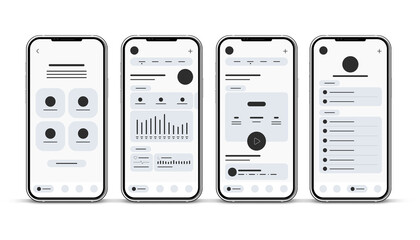
Designed for iOS, Android, or cross-platform apps, these templates feature screens for login, onboarding, and navigation.
3. Wireframe Templates
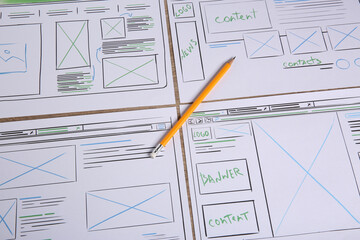
Basic skeletal frameworks that allow designers to map out ideas quickly before adding detailed design elements.
4. UI Kits
Comprehensive packages of buttons, icons, typography styles, and other UI components.
5. Prototyping Templates
Interactive templates that simulate user flows, helping designers visualize how users interact with the product.
How to Choose the Right Template
Not all templates are created equal. Here’s how to pick the one that works for your project:
1. Understand the Project Scope: Define your goals, target audience, and functionality needs.
2. Check for Responsiveness: Ensure the template adapts to different devices and screen sizes.
3. Evaluate Customization Options: Look for templates that allow easy modification.
4. Prioritize User-Centric Elements: The template should align with user expectations and behaviors.
5. Read Reviews and Ratings: Feedback from other users can highlight potential issues or advantages.
For example, if you’re designing an e-commerce app, prioritize templates with robust product listing pages and secure payment gateways.
Best Practices for Working with Templates
1. Start with the End-User in Mind
Templates are only a foundation. Your ultimate goal should be creating an experience tailored to your users. Identify their pain points, preferences, and expectations before selecting or modifying a template.
2. Customize for Uniqueness
Avoid using templates as-is. Customize colors, typography, and layout to reflect your brand identity. A generic template won’t leave a lasting impression on users.
3. Test Early and Often
Conduct usability tests to ensure the template aligns with your design goals. Even minor adjustments can significantly impact user experience.
4. Leverage Advanced Features
Modern templates often include animations, responsive grids, and accessibility options. Use these features to enhance functionality and aesthetics.
5. Keep Scalability in Mind
Choose templates that can evolve with your project. For example, a startup website might later require e-commerce functionality.
Challenges of Using UI/UX Templates
While templates offer numerous benefits, they come with their own set of challenges:
- Over-reliance on Templates: Excessive dependence can stifle creativity and result in cookie-cutter designs.
- Customization Limitations: Some templates are rigid, making it difficult to adapt them to unique project requirements.
- Compatibility Issues: Templates may not integrate seamlessly with all tools or platforms.
- Learning Curve: Understanding how to modify templates effectively can take time.
To overcome these challenges, focus on customization and maintain a balance between using templates and original design.
Tools for Working with UI/UX Templates
1. Figma
Known for its collaborative features, Figma allows designers to customize templates in real time.
2. Sketch
A popular choice for macOS users, Sketch offers a vast library of templates and plugins.
3. Adobe XD
This tool combines ease of use with powerful prototyping features, making it ideal for working with templates.
4. Canva
While more focused on graphic design, Canva’s templates are perfect for quick mockups.
5. Webflow
For designers working on websites, Webflow offers responsive templates and coding flexibility.
Real-World Example: Using Templates for E-Commerce Design
Imagine you’re tasked with designing an e-commerce app. Using a mobile app template, you:
1. Select a Template with Essential Features: Look for templates with robust navigation, product filters, and payment options.
2. Customize Visuals: Adapt the color scheme to match the brand’s identity.
3. Add Unique Elements: Integrate personalized recommendations or loyalty features.
4. Test the Flow: Conduct user testing to ensure the checkout process is seamless.
By using a template as a foundation, you save time while delivering a polished, user-friendly product.
Benefits of Using Templates
1. Speed: Accelerate project timelines by skipping the foundational design phase.
2. Consistency: Maintain uniformity across design elements and platforms.
3. Cost-Effective: Reduce the need for extensive resources.
4. Flexibility: Adapt templates to suit a wide range of projects.
5. Enhanced Collaboration: Shared templates streamline team workflows.
Conclusion
UI/UX design templates are a valuable asset in any designer’s toolkit. When used effectively, they streamline the design process, improve consistency, and inspire creativity. However, the key lies in customization—ensuring that the template serves as a foundation, not a final product.
By balancing template use with original design, you can create user-centric interfaces that stand out. Whether you’re a beginner or an experienced designer, templates can be your secret weapon for delivering exceptional user experiences.
Master the art of crafting intuitive interfaces and unforgettable user experiences with our Advanced UI/UX Design Course. Gain hands-on skills, elevate your career, and create designs that leave a lasting impact.
Enroll now at Kaarwan and take your expertise to the next level!
FAQs
1. What are UI/UX design templates?
UI/UX design templates are pre-designed layouts or kits that help designers create interfaces quickly and efficiently.
2. How do I customize a template?
You can customize templates by changing colors, typography, layout, and adding unique design elements that align with your project goals.
3. Are templates suitable for all projects?
Templates work well for most projects but may require extensive customization for highly unique designs.
4. What tools are best for working with templates?
Figma, Sketch, Adobe XD, Canva, and Webflow are popular tools for customizing UI/UX templates.
5. Can using templates impact creativity?
Templates provide a starting point and save time. Creativity comes into play when you adapt and personalize them to meet user needs.